 MyPwdTool
This page walks through the app itself, screen by screen — what each feature is for and how to use it. For the underlying design (why the relay can’t read your data, how sync works, how backups work), see the other pages linked throughout.
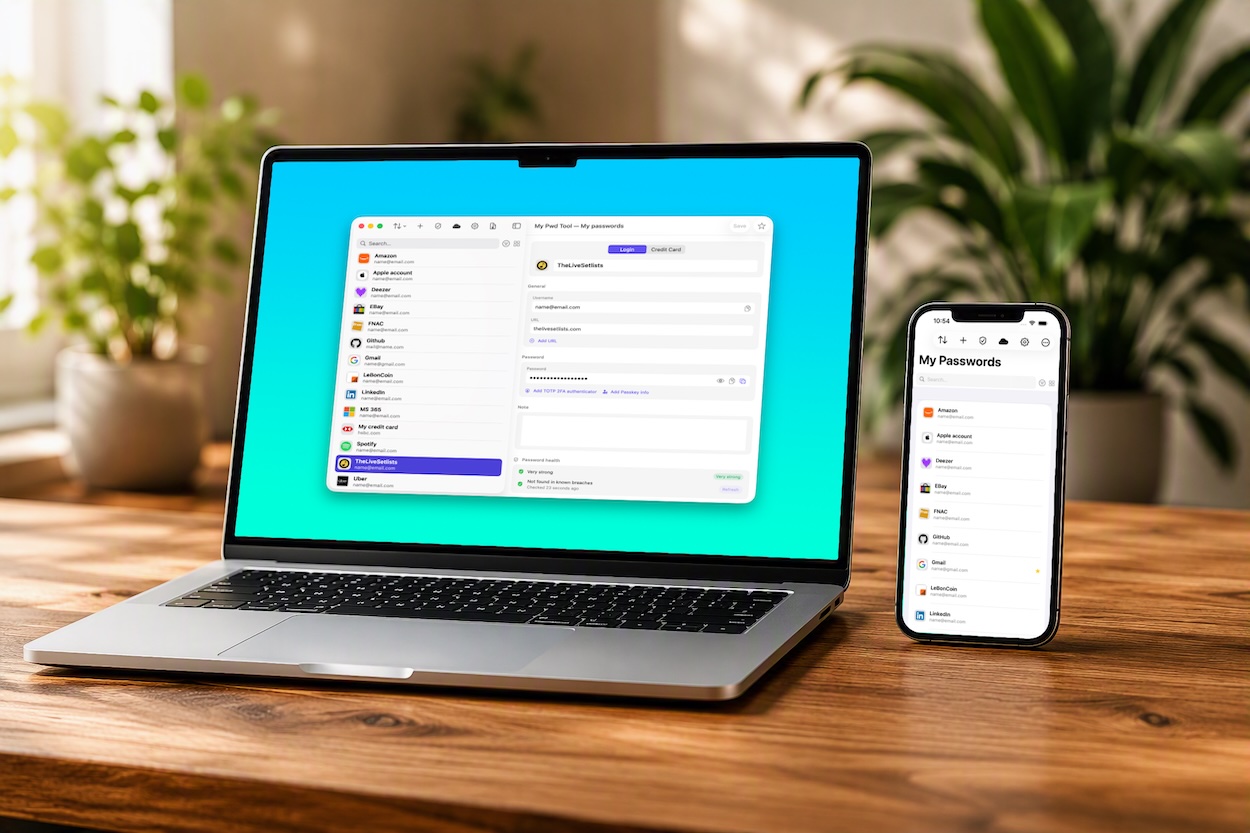
Creating your first vault
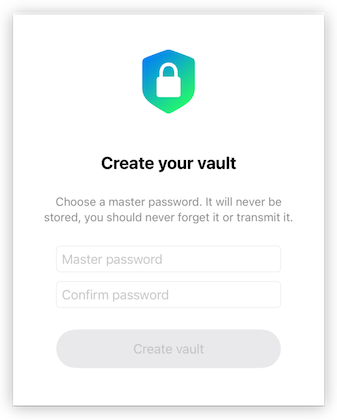
The first time you launch MyPwdTool, it creates your vault automatically and asks you to choose a master password. There’s no separate setup screen beyond this — just the master password prompt itself, titled “Create your vault.”
Choose this password carefully: it’s never stored anywhere, on your device or anywhere else, and it’s the only thing standing between your encrypted vault file and its contents. See Security & Encryption for exactly how it’s used, and Local Vaults & Backups for what happens if you ever lose it (short version: keep a backup).
Two kinds of entries
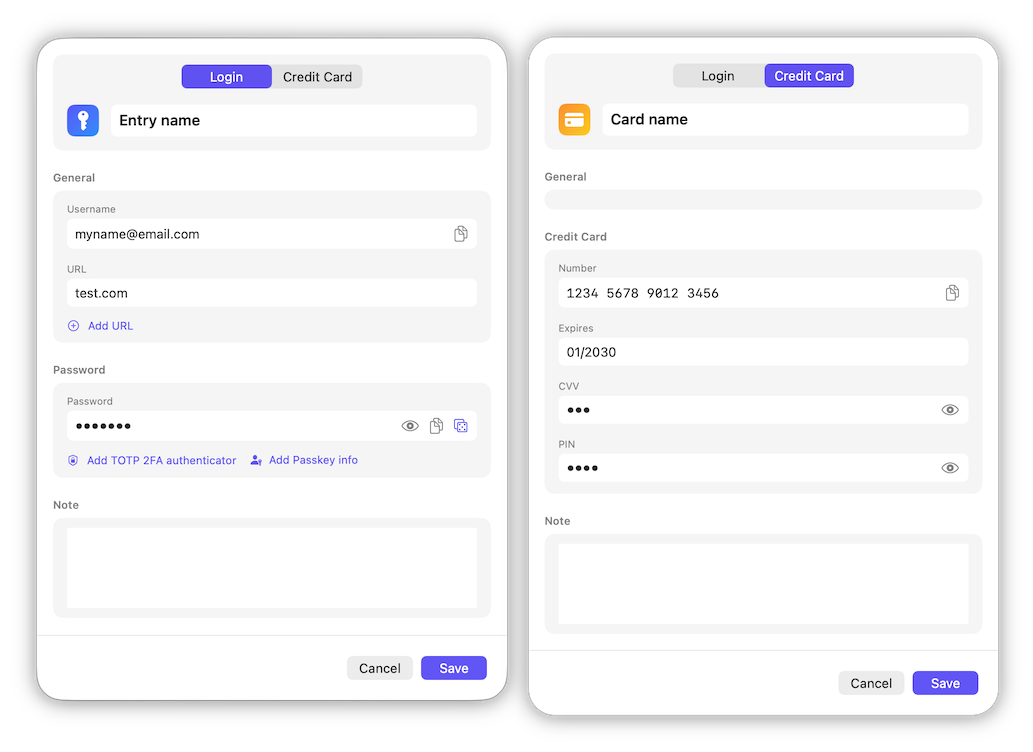
MyPwdTool stores two entry types:
- Login — name, username, password, one or more website URLs, a note, and optionally a TOTP 2FA secret, passkey metadata, and password history.
- Cards — name, card number, expiry, CVV, PIN, and a note.
Both types share the same encryption, the same Bin/favorites/duplicate-detection behavior, and the same search and filtering.
Search and filters
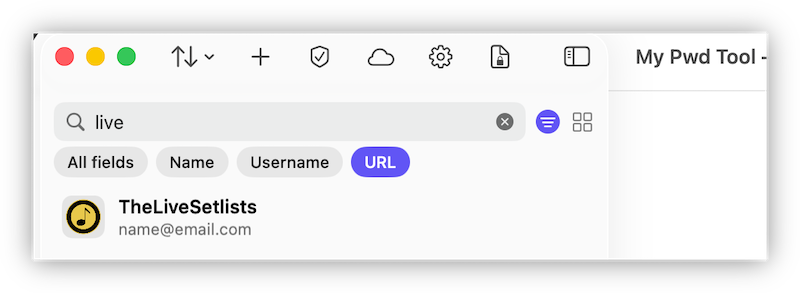
The entry list has a search bar at the top. Typing searches across name, username, and URL by default; tapping Advanced search reveals scope chips so you can narrow it to just one of those fields.
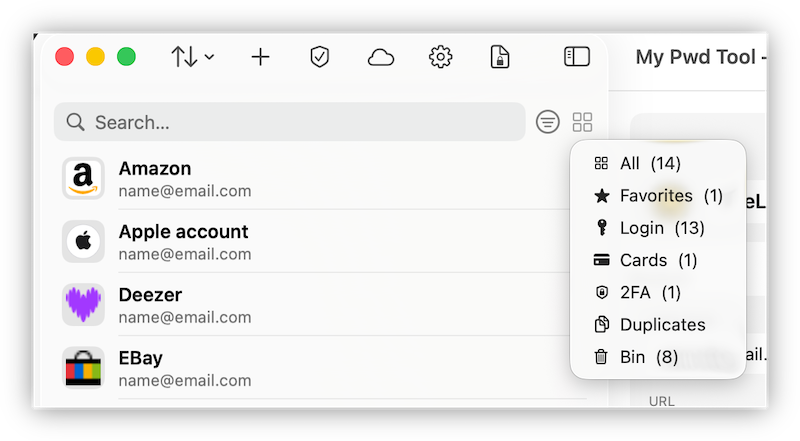
A separate filter menu lets you narrow the list by type and status: All, Favorites, Login, Cards, 2FA, Duplicates, and Bin — each shows a live count of matching entries.
Favorites
Tap the star icon in an entry’s detail view to mark it a favorite. Favorited entries show a star in the list and can be isolated at any time via the Favorites filter.
The Bin
Deleting an entry doesn’t erase it immediately — it moves to the Bin, visible via its own filter, and shows exactly when it was deleted. Entries in the Bin are permanently removed after 30 days; there’s no way to configure that window per entry. You can restore a binned entry at any point before that, or delete it permanently yourself if you don’t want to wait.
Duplicate detection
MyPwdTool flags entries that look like duplicates of each other (same or very similar name/username/URL) two ways: a dedicated Duplicates filter to see all of them at once, and a “Similar entries” section inside an individual entry’s detail view, so you can jump straight to the ones it’s being compared against and decide which to keep, merge, or delete.
URLs and favicons
Add a website URL to a login entry and MyPwdTool automatically fetches its favicon to show next to the entry in the list — nothing to configure. Icons are fetched by domain only; the request never carries your username, password, or any other entry data.
Tip: You can add your bank’s URL to a card-type entry (by temporarily selecting the ‘Login’ type); the icon for your card-type entry will then be your bank’s logo.
TOTP two-factor codes
On a Login entry, “Add TOTP 2FA authenticator” lets you paste in a site’s TOTP secret. Once added, the entry shows a live, auto-refreshing 2FA code with a copy button — no need to open a separate authenticator app. Replacing an existing secret asks for confirmation first, since the old one is gone the moment you do.
Passkey info
MyPwdTool doesn’t currently create or use passkeys directly on your behalf — it stores passkey metadata (Relying Party ID, Credential ID, User Handle) alongside a Login entry, so you have a record of which of your accounts use a passkey and what its identifiers are. “Add Passkey info” on a Login entry adds this section; removing it asks for confirmation.
Notes
Every entry has a plain-text Note field, encrypted the same way as every other sensitive field in the entry (AES-256-GCM) — a place for anything that doesn’t fit the structured fields, like security question answers or account recovery details.
Password Health
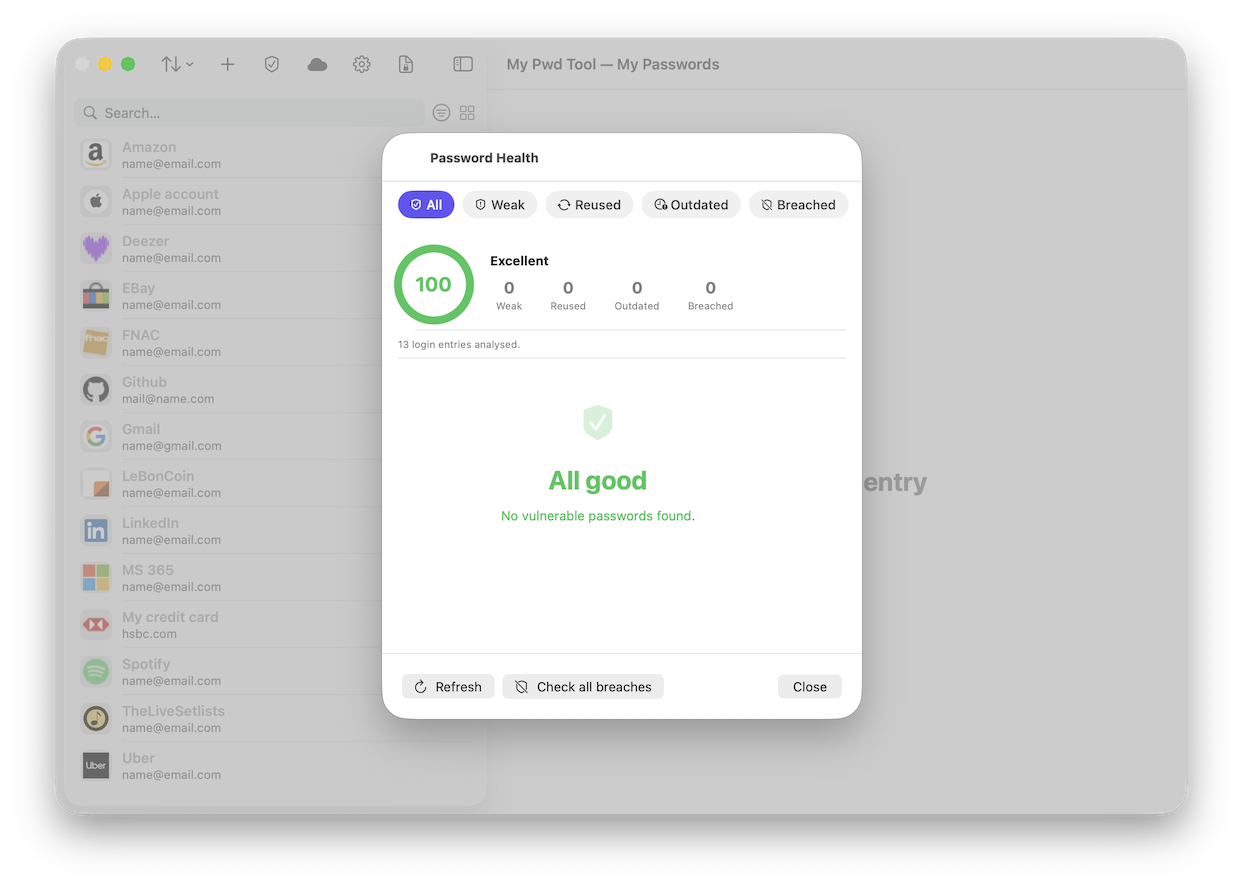
The Password Health view scores your vault from 0–100 (Excellent / Good / Fair / Needs attention) and breaks problems down into four categories: Weak, Reused, Outdated (not changed in 12+ months), and Breached. Breach checking uses Have I Been Pwned’s k-anonymity API, so your actual password never leaves your device — only a partial hash prefix is sent. See Password Health for the full detail on how each check works.
Sorting
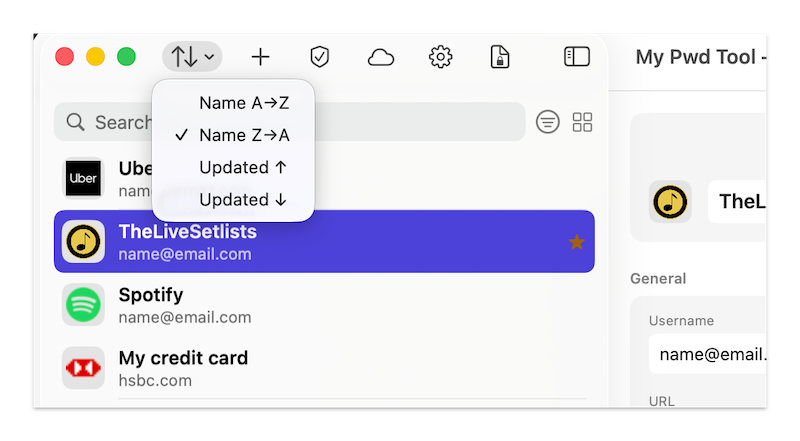
The toolbar’s sort menu offers Name A→Z, Name Z→A, Updated ↑, and Updated ↓ — no sort-by-strength option currently, use Password Health for that instead.
Pairing devices
Want your vault on more than one device? See Synchronization for how to pair devices and keep them in sync.