 MyPwdTool
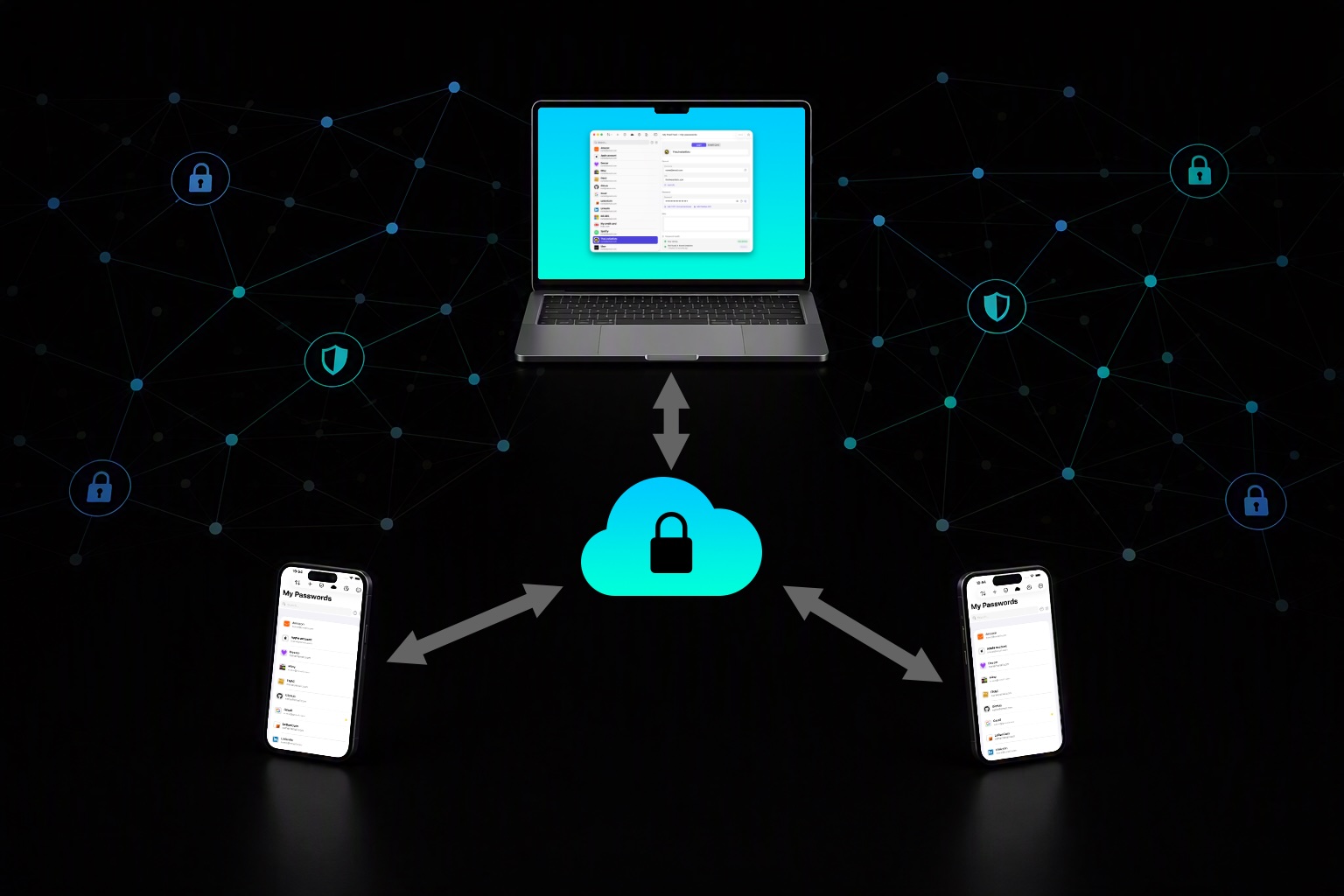
The feature: same passwords vault on many devices
You have hundreds of passwords and multiple Macbook, iPhone, iPad, PC? Activate device synchronization. All your passwords on all your devices, with full security.
The model: a blind relay, not a cloud database
Most password managers sync by uploading your (encrypted) vault to a company’s cloud database. MyPwdTool works differently: there is no central database of vaults at all. Instead, your devices talk directly to each other through a small relay server whose only job is to pass encrypted messages along — it has no concept of a “vault,” a “password,” or even a “user account.”
The relay only ever sees:
- Random, pseudonymous device and inbox identifiers (no name, no email, no account tied to them)
- Opaque encrypted message blobs it cannot decrypt
- Enough routing metadata to deliver each message to the right device
It never sees, and structurally cannot see, the encryption key that would let it read any of those messages — because that key is generated on your own devices and exchanged directly between them, never through the relay at all (see below).
The relay’s source code is public and open for independent review at github.com/ThibaultDucray/e2eerelay — this is a deliberate design choice: you shouldn’t have to just take a vendor’s word for what their server does or doesn’t see.
The relay itself runs on Clever Cloud, a French cloud platform.
Creating a group (before pairing anything)
Before any devices can be paired together, one of them needs to start — or “create” — the sync group the rest will join. Think of it as preparing your vault to be shared, not yet adding a second device.
- On the device whose vault you want to share, open Sync in Settings.
- Choose “Create a group.” This turns that device’s vault into the first member of a brand-new sync group, ready for others to join.
Creating a group is the one paid step in the whole process — see Subscription & Pricing. You only do it once, on whichever platform you subscribe from (Apple, Google Play, or Lemon Squeezy on Windows); every device that joins afterward does so for free (see “Adding a device” below), regardless of its own platform.
Adding a device (pairing)
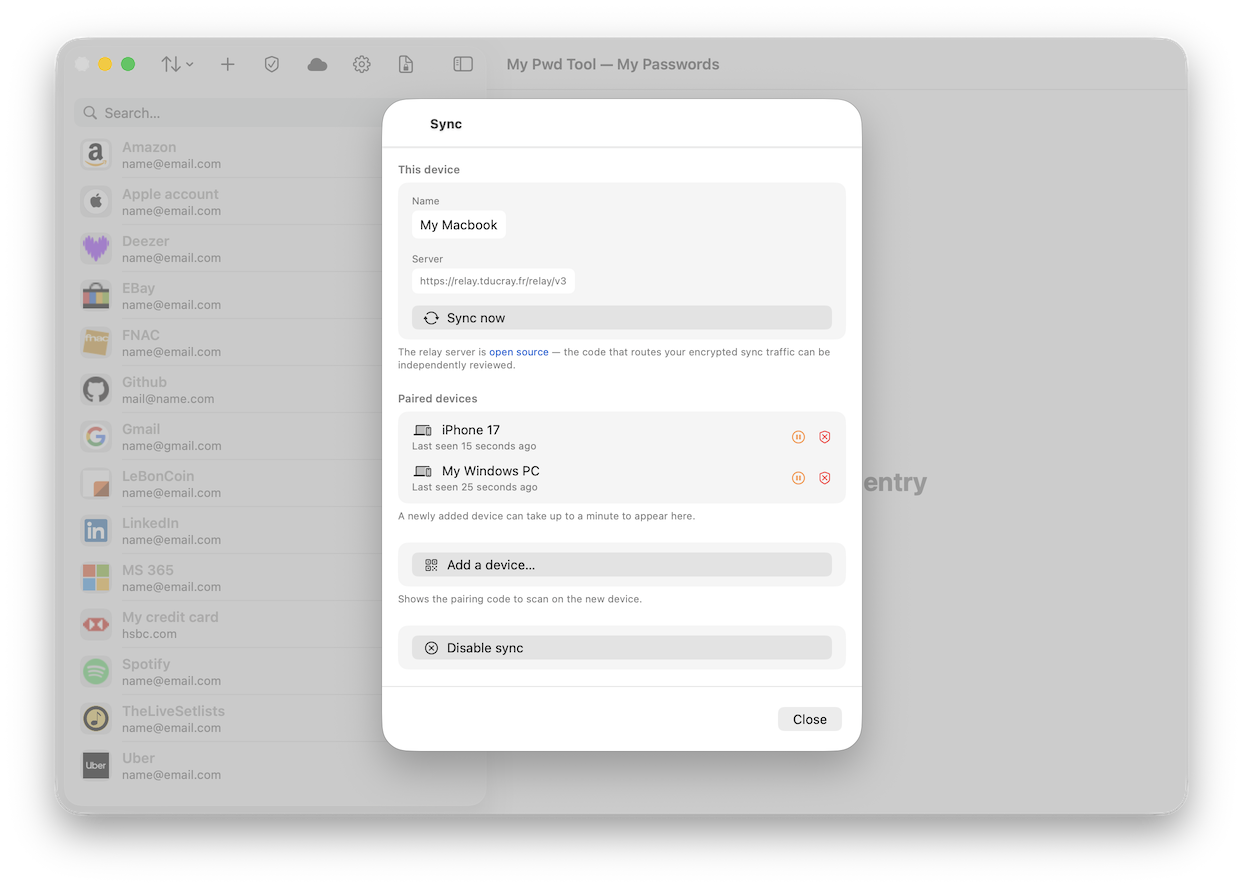
- On a device already in your sync group, open Sync and choose “Add a device.” You get a QR code (and a and a key that you can copy and paste onto the other device if it doesn’t have a camera).
- Scan that code on the new device (or paste the copied key).
Keep that QR code and key secret. It doesn’t change for the entire life of the group, so anyone who sees it — a screenshot, a photo, someone glancing over your shoulder — could use it to join your sync group themselves. Treat it like you would a password: only show or scan it directly between your own devices, and never post it, email it, or leave it visible anywhere someone else might come across it.
If it’s ever revealed anyway, the only way to change it is to disable sync on every device, then create a brand-new group from scratch and pair your devices into it again. All entries that existed before you disabled sync are kept on each device and get shared with the group again once paired — with no risk of duplicate entries.
The encryption key that protects your synced data is generated on your device and travels only through that direct QR exchange, hand-to-hand between your own devices. It never touches the relay. Once a device joins, it introduces itself to every other device already in the group, so a family of 3, 4, or 10 devices stays one fully-connected group — not a chain that breaks if one device happens to be offline.

On each device’s row in your sync group, you’ll also notice a small amber pause button next to the red revoke shield. This pauses that one peer temporarily: your device simply stops sending it further updates until you tap it again to resume (it turns into a green play button) — nothing is deleted, no encryption key is rotated, and you keep receiving that peer’s own updates as normal in the meantime. It’s a local, reversible choice that only affects how this device treats that one peer, handy when you know a device will be offline or unreachable for a while and don’t want to bother with a full removal over it.
Disabling sync (leaving a sync group)

If you simply want the current device to stop syncing — say, before selling it, or because you no longer want this particular vault to be shared — disable sync on that device (Settings › Sync › “Disable sync”). This is the safe, everyday way to disconnect one device from the group:
- Your vault’s data stays exactly as it is on this device — nothing is deleted, nothing is wiped.
- This device leaves the group and forgets the shared encryption key, so it can no longer decrypt any future sync traffic, and stops sending its own changes to the rest of the group.
- Every other device in the group is notified and rotates the shared key, exactly as it would for a normal device removal (see below) — the group carries on without you.
Use this whenever the device is in your own hands and you can act on it directly. It’s the opposite of the “force removal” below, which is for a device you can no longer trust or reach.
Force removing a device (in case of emergency)
We’re talking about the red revoke shield here.
This is the danger zone, reserved for a device you can’t act on directly anymore — lost, stolen, or a family/team member’s device you no longer trust. Unlike disabling sync above, this is something you do to another device, from a device you still control, without its owner’s cooperation. Reach for it only in that situation; for a device you still hold, disabling sync on it directly is the simpler, safer choice.
Revoking a device is designed to fail safe:
- It’s removed from your side immediately, even with no internet connection at that exact moment — your device simply stops sending it anything else, from that instant on.
- A brand-new encryption key is generated for everyone else in the group, and the old one is retired. Even someone who somehow extracted the old key from a stolen device gains nothing from it for any data moving afterward.
- If the removed device is still online and reachable, it receives the revocation, wipes its own local copy of the vault, and clears any saved unlock method — automatically. If it’s offline, that instruction waits for it for up to 30 days.
- A device that’s already been removed can’t be silently re-added by a stale, late-arriving message — every remaining device remembers it was removed and refuses to re-admit it.
The trade-off you should understand
A relay that can’t read your data also can’t recover it for you. If you lose every device that holds a copy of your vault, with no separate backup, that data is gone for good — see Local Vaults & Backups for exactly what that means and how to protect yourself against it (short version: keep an encrypted backup export somewhere separate from your devices).
“Add a device” always leads to the same place
Creating a group and inviting further devices into it both require the subscription (see Subscription & Pricing) — joining an existing group stays free on every platform, unconditionally, with no invite limit. The “Create a group” and “Add a device” buttons are always visible and clickable on every platform; on a device without an active subscription in its group, tapping either simply opens the same subscription screen that “Create a group” would. There’s no separate “X invites left” counter to track — the entitlement check is the same regardless of how many devices are already in the group.
There is, however, a hard technical ceiling: a sync group can hold at most 50 devices. Every change one device makes is broadcast directly to every other device in the group in a single relay message, and the relay itself refuses to accept a message addressed to more recipients than that — it’s a fixed limit of the relay protocol, not something the app enforces or that a subscription can lift. In practice this is far beyond what any real household or team needs.